
Put a link to your website in the proofs
Introduction
From the Proofs tab of your certificates, you have the possibility to add a link to a page of your website:
- To increase the confidence when consulting the certificate. Note that the address of this link is certified on the blockchain, like all the proofs.
- To explain to the person consulting the link the official status of this certificate for your institution, and thus further reduce calls to verify the validity of a certificate.
- To highlight your approach and your innovative project and give access to content related to your current events, while increasing traffic to your site.
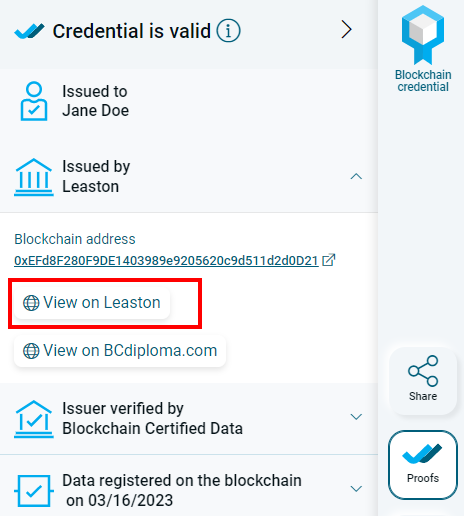
How to add this link
First step: design and deploy a dedicated page on your corporate site. To help you, here is the sample page we published for our "Leaston" demonstration certificates: https://www.leaston.org. We provide you with the source code and instructions to customise it below: you are free to use it to deploy your institution's page.
Second step: once your page is deployed on your domain, send us its address so that we can add it to your evidence set, by a simple email to support@bcdiploma.com.
Customisation instructions
Download the archive containing the source code of the Leaston.org website. You can customize, modify, use this page and its source code as much as you want, but at least:
- Remove the paragraph indicating that Leaston University is a fictitious university, in French and in English in index.html and index-fr.html files.
- Replace "Leaston University" with the name of your institution in all html files;
- Modify the institution-style.css file to customise colours, fonts, logos and titles to your image. An alternative configuration is provided directly in the file;
- Change the certificate images, logo and background image to match your brand;
- In the js/params.js file, replace :
- leaston.org with the domain on which your certificates are searchable (bcdiploma.com if you have not set up certificate integration on your own domain)
- The 253 ID by the ID of your institution. If you are an administrator, you can retrieve this ID in the Administration|API tab of your backoffice.
- 0xe8231cF11D48D206bD0af85241dA38c7E0CD4462 by your production blockchain address. You can find it on the BCdiploma directory, on one of your production certificates, or, if you are an administrator, in the backoffice, Administration|API tab of your production environment.
- 0xEFd8F280F9DE1403989e9205620c9d511d2d0D21 by your staging blockchain address. You can find it on the BCdiploma staging directory, on one of your staging certificates, or, if you are an administrator, in the backoffice, Administration|API tab of your staging environment.
- 0x4F7f6147097F182B8c92807c7bB47b39ff089ED4 by your demo blockchain address. You can find it on the demo blockchain page of your website. You can find it on the BCdiploma demo directory or on one of your demo certificates.