
Moodle Plugin
Introduction
The BCdiploma Moodle activity plugin makes it easy to integrate and automate the certificate issuance process within the Moodle LMS.
It allows you to:
- manage the connection between Moodle and BCdiploma (authentication and environment selection)
- configure activities in which the Moodle user can:
- select a certificate template to use
- choose how certificates will be distributed (automatically or on demand, with or without email delivery)
- automatically generate certificates based on the restrictions defined for the activity
- display / resend / delete generated certificates from the activity report
- reissue certificates
Installation and limitations
Tips
The BCdiploma plugin is compatible with Moodle 4.5 and 5.X. Only micro-certification templates and templates derived from seed models are supported.
You can download the beta version ZIP package of the BCdiploma plugin for Moodle here and install it from the Moodle admin interface using the "Install plugin from ZIP file" feature.
Initial configuration
You can find the BCdiploma plugin in the list of installed plugins in Moodle's administration panel, under the identifier "mod_bcdiplomacert".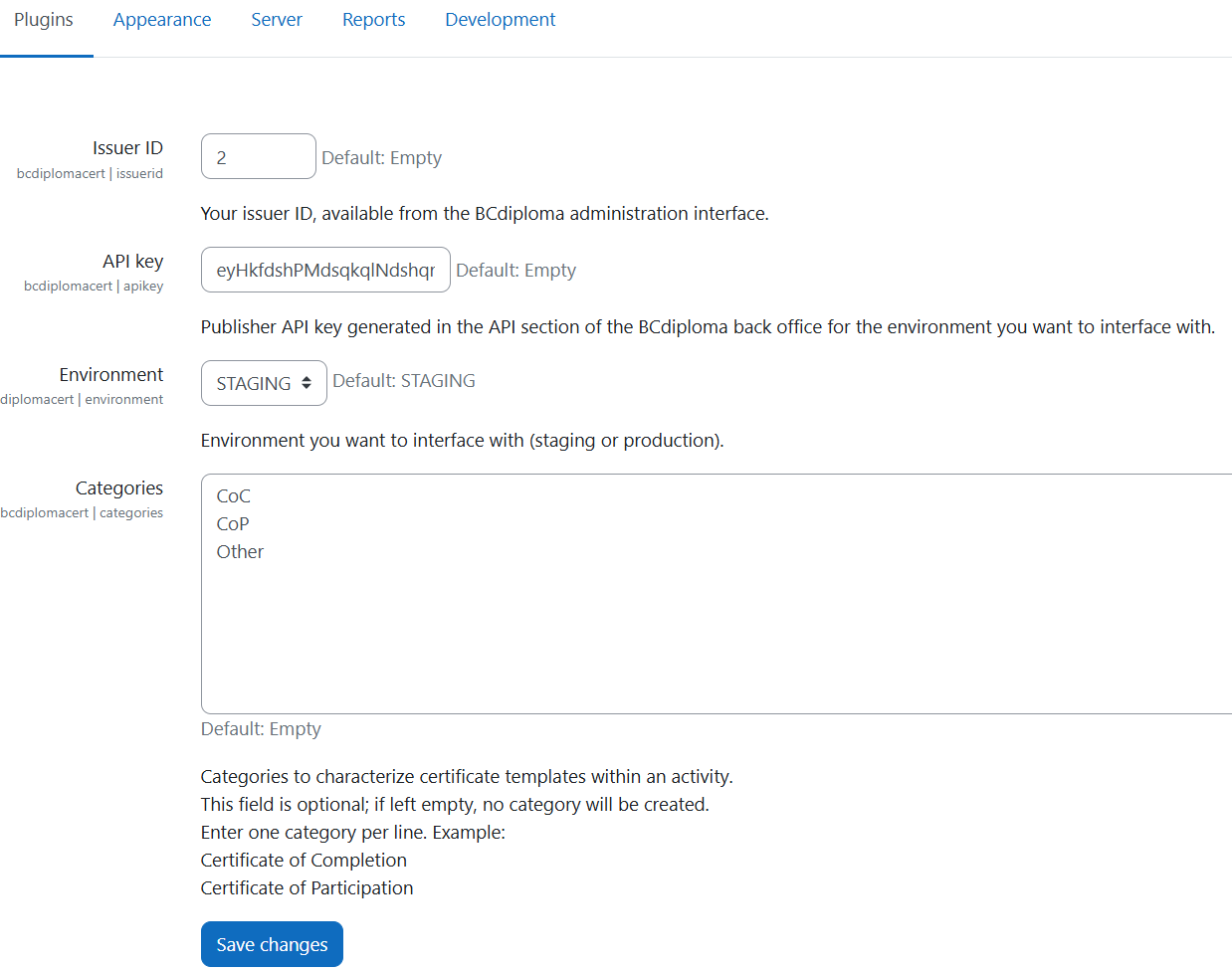
You must complete an initial setup before using the plugin by going to the plugin’s "Settings" and entering:
- Issuer ID: Your issuer ID, available from the BCdiploma administration interface.
- API key: A "publishing" API key generated in the API section of the BCdiploma back office for the environment you want to connect to.
- Environment: The environment you want to connect to (production or staging, if available).
- Categories: Categories used to characterize the activity. This field is optional; if left empty, no category will be created. Enter one category per line. Example:
Certificate of Completion
Certificate of Participation
To retrieve your API key and issuer ID, refer to this article.
Configuration and options
Warning
You must define restrictions for the activity before enabling the Auto-generate certificates on completion option.
If you don't define any restrictions, a certificate will be automatically generated (and potentially emailed!) for every participant enrolled in the course as soon as you save the activity.
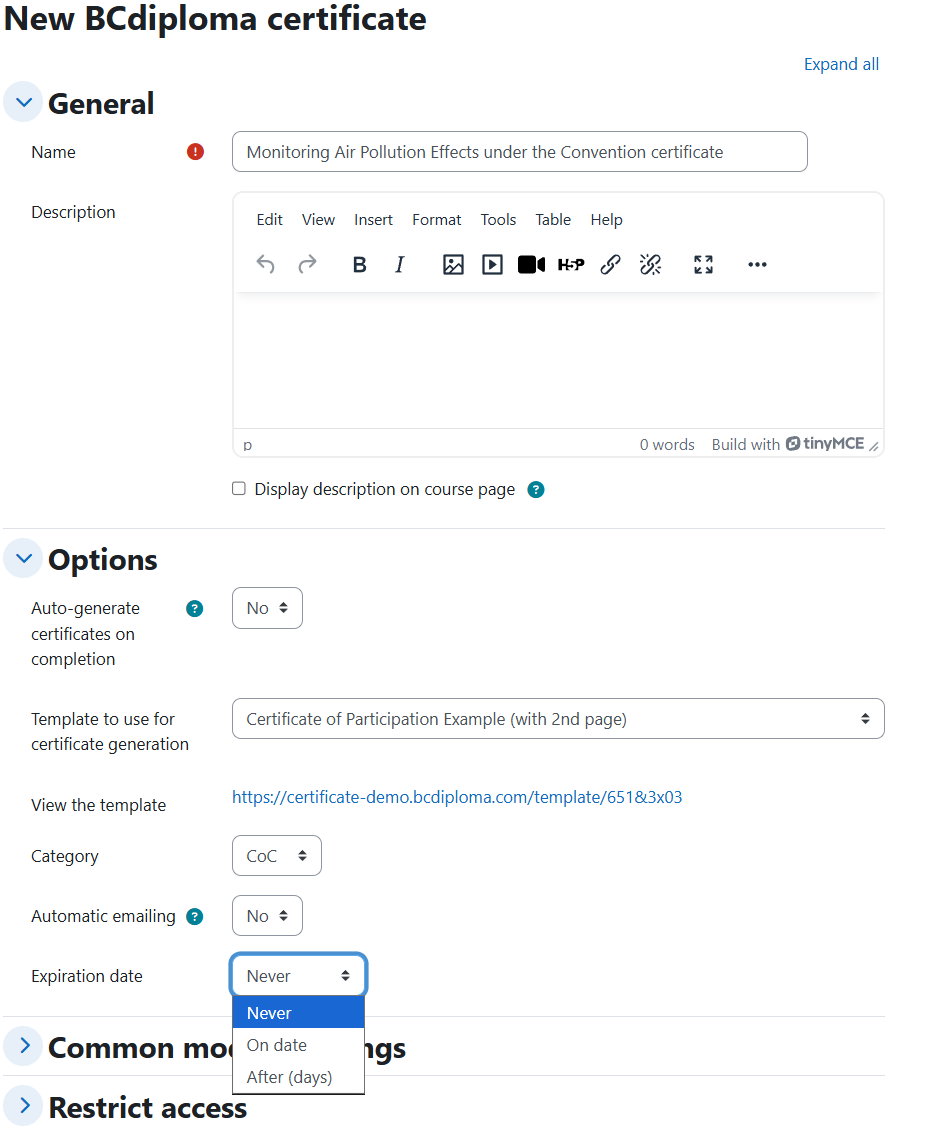
Add a "BCdiploma certificate" activity in a course to automatically generate certificates for that course’s participants, and fill in the following fields:
- Auto-generate certificates on completion: If this option is enabled, certificates will be automatically generated via a cron job as soon as the activity restrictions are met for the learner. If this option is disabled, the certificate will be generated when the participant accesses the activity tab within their course (provided that all activity restrictions have been met).
- Template to use for certificate generation: The template to be used to generate the certificate.
- Category: Optional, used to categorize the activity.
- Automatic emailing: If this option is enabled, the certificate will be automatically sent to the user by email. The email settings (subject, sender, etc.) must be preconfigured in the BCdiploma admin interface.
- Expiration date: optionally allows you to set a fixed expiration date - On date - or one relative to the certificate issuance date - After (days) -.
Tips
If you change the certificate template in the activity settings, only certificates issued after the change will use the new template. To modify certificates that have already been issued as well as those that will be issued, you need to edit the certificate template directly from the BCdiploma back office.
How it works
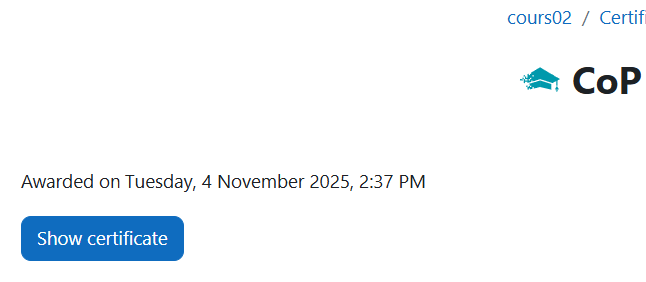
Once the activity is configured, any enrolled learner who is active and has no remaining restrictions will receive a BCdiploma certificate based on the template defined in the activity settings. This certificate will be accessible to the learner from the BCdiploma certificate activity tab:
It will also be available to the teacher in the report section, for all learners who have been issued a certificate:
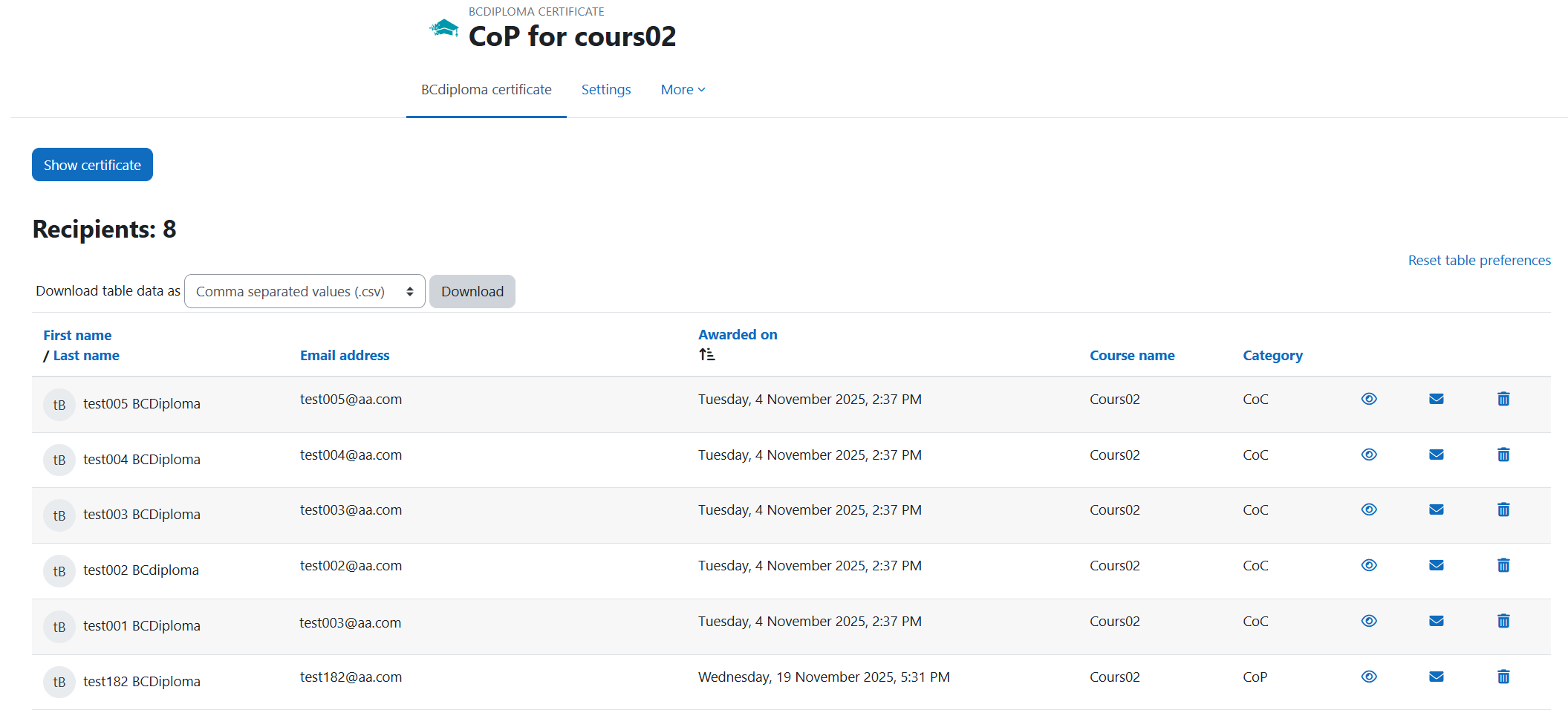
From this screen, the teacher can view, email, or individually delete a learner’s certificate.
Expected Behavior: "Auto-generate certificates on completion"
The "Auto-generate certificates on completion" option allows for the automatic background generation of certificates for users who have met all activity restrictions. It is important to note that, regardless of this setting, no certificate will be generated if any restrictions remain unmet for the participant.
We strongly recommend setting the "Auto-generate certificates on completion" option to "Yes" to ensure a smoother learner experience. This specifically enables the automatic delivery of certificates via email as soon as they are generated.
Here is how the Moodle plugin behaves depending on this setting:
- "Auto-generate certificates on completion" set to "No": The certificate is generated only when the learner accesses the activity's certificate page. A loading indicator (spinner) will appear for a few seconds while the document is being created.
- "Auto-generate certificates on completion" set to "Yes": The certificate is automatically generated within 2 to 3 minutes after the learner meets the restrictions, via a background task (CRON). In this case:
- If the learner accesses the certificate page before this delay is over, a message will appear indicating a wait time (2 minutes maximum).
- If the learner accesses the page after this delay, the certificate is available immediately (as it has already been pre-generated).
FAQ
Why aren't my certificates generated automatically even though I've enabled the Auto-generate certificates on completion option in the activity settings?
You must check the following points:
- The course has not started yet or has expired: no certificate will be generated for this course.
- The selected template has been deactivated in the BCdiploma back office: it is therefore no longer possible for certificates to be generated using this template.
- Course participants are not “Student” in the Moodle sense: no certificate will be generated for them.
- Check that the plugin’s initial configuration is still correct (see above).
- There may be errors when running the “CRON” scheduled task that generates certificates in the background. If they exist, these errors will be in the task logs, accessible via
Site administration | Server | Scheduled tasks | Issue certificates – BCdiploma certificate, then click theLogbutton. In these logs, check whether a configuration issue or a connectivity problem (e.g., invalid API key, wrong environment selected) could be the cause.
A learner has updated their first name or last name in their Moodle profile. How will their certificate be updated?
If a learner updates their first name or last name in their Moodle profile, a regeneration button will automatically appear on the certificate page within their course. By clicking this button, they can generate a new certificate reflecting their updated identity.
Why am I receiving a 4XX error during certificate generation?
A 4XX error (e.g. "403 - Access denied") is usually caused by an authentication issue during API calls to BCdiploma. Possible causes include:
- Missing API Key: You have not entered an API key in the BCdiploma plugin settings in Moodle.
- Invalid API Key: The API key is no longer valid because a new key of the same level was regenerated by you or another user (the old key is automatically invalidated for security reasons).
- Environment Mismatch: The API key was generated for a different environment than the one selected in Moodle (e.g., you generated a key in Staging but selected "DEV" as the Environment in the plugin settings).
- Insufficient Permissions: The API key used does not have sufficient permissions ("Read-only" access is insufficient).
- The template selected in the relevant activity has been deactivated in the BCdiploma back office: it is therefore no longer possible for certificates to be generated using this template.
Changelog
Legend
+ Added functionality
* Improvement
- Bug fix
v2026062600
+ Moodle 5.X compatibility
+ Support for the PROD-US environment (api-cus.bcdiploma.com)
+ Confirmation warning when saving the activity when automatic generation is enabled
v2026042800
+ Optional management of certificate expiration dates at the activity settings level
* Optimization of the scheduled certificate generation task
v2026030600
* Improved the waiting message during certificate preparation and the message indicating that certificates are generated only for individuals with the “student” role
* Updated the copyright year to 2026
v2026021700
* Users (teachers or administrators) who are not students no longer automatically generate certificates when viewing the activity: a message is displayed to inform them
* From now on, only courses with an active bcdiplomacert activity and users with a certificate to generate are recorded in the CRON task logs
* Updated the waiting message indicating that generation is in progress to a less misleading one when processing times are longer than expected
* Optimization of the scheduled generation task to process only courses that have BCdiploma activity
* From now on, if automatic certificate generation is not enabled on the activity, the certificate will be generated on the fly when a student accesses the certificate view page with the parameter "downloadown=1"
* Add an Ⓐ indicator on the “My digital certificates” page showing that certificate generation is automatic (if the Auto-generate certificates on completion option is enabled on the activity)
- The CRON task is no longer fully interrupted when a 4XX error is encountered
- Fixed the error "A required parameter (id) was missing" from the "My digital certificates" menu. It was due to the certificate not yet being retrieved in Moodle even though the issuance request had been sent to the BCdiploma APIs. The certificate access button is now not clickable until the certificate is actually available
- Fixed the PHP warning "Undefined variable $userid" that could occur when viewing a certificate
v2026012000
+ New “My digital certificates” page accessible from the user profile, allowing students to access all previously issued certificates (my_certificates.php)
* Optimizations to resource usage during API calls
- Fixed an API call that could generate 4XX errors in certain configurations
- Fixed the label/name of the evidenzid field in the Moodle data model
- Fixed the automatic certificate regeneration mechanism when a student has changed their first name or last name
v2025121600
- In certain configurations, the certificate loading indicator spins continuously without displaying the recipient’s certificate.
v2025121200
- In certain configurations, the certificate loading indicator spins continuously without displaying the teacher’s certificate.
v2025121000
- Fixed the "Uncaught ReferenceError: $ is not defined" error that occurred in certain configurations when accessing the bcdiplomacert activity
v2025120500
- Replaced a hard-coded URL with a relative URL, which was preventing generated certificates from being displayed
- Clicking the “Send emails” button on the report page would scroll back to the top of the page
* Minified JS sources
* Updated an obsolete schema version
v2025112400
* Automatically generate a new certificate for teachers when the activity template has changed
v2025111901
+ New Moodle plugin for automating certificate issuance from the Moodle LMS