SSO Setup
Azure Entra
Introduction
This page outlines the procedure to enable BCdiploma teams to activate SSO authentication for your BCdiploma environments.
For each environment (staging and production), you will need to:
- Register and configure an App in Azure Entra
- Provide us with two pieces of information
Azure Configuration
In the Azure portal:
- Ensure you are on the correct directory.
- Go to the Microsoft Entra ID component, then App Registration.
- In New registration:
- Enter the text to be displayed at the header of the login page, for example:
BCdiploma SSO Portal. - Provide a Redirect URI of type Web with the following values:
- For the staging application:
https://api-staging.bcdiploma.com/admin/sso - For the production application:
https://api.bcdiploma.com/admin/sso
- For the staging application:
- Click Register to confirm.
- Enter the text to be displayed at the header of the login page, for example:
- On the App, in Overview, navigate to Add a certificate or secret, then New client secret. Choose an expiration period and confirm.
Warning
You must ensure the App always has a valid secret. An expired secret will break SSO authentication for all users.
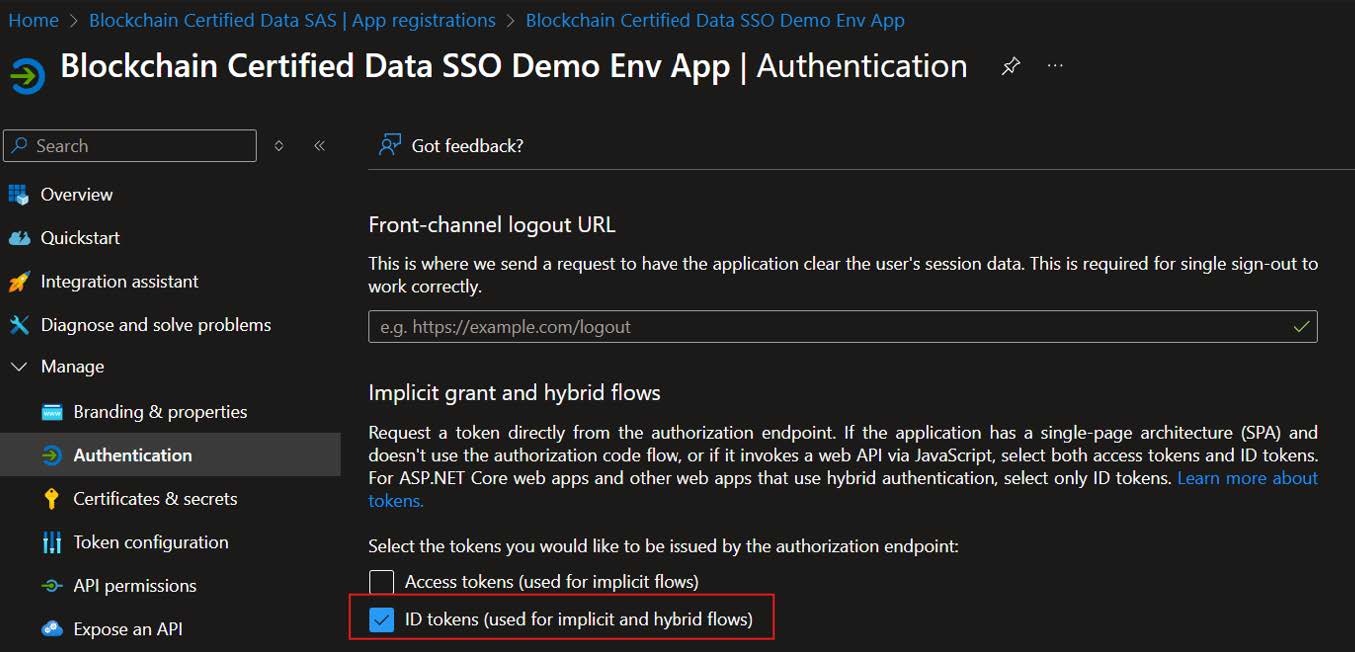
- In Manage | Authentication, check ID tokens and save.
Information Transmission
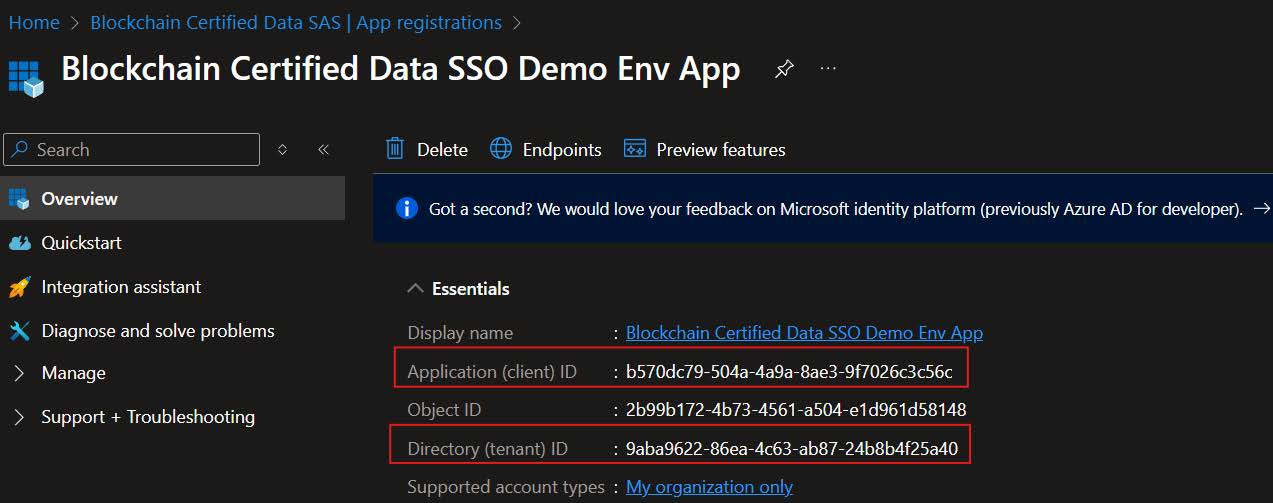
Once both Apps (staging and production) are registered, please send BCdiploma the following for each:
- Application (client) ID
- Directory (tenant) ID
Both values are visible in the Overview section of the registered App in the Azure portal.